Execute Package Tasks
Available for Flex (SSIS) only
To execute packages that utilize Execute Package Tasks to control their workflow you need to upload the main package and all its child packages to COZYROC Cloud. The package file paths will be automatically resolved during execution provided the conditions described below are met.
Supported package references
| Reference Type | Location | Support |
|---|---|---|
| External Reference | File system | Supported |
| External Reference | SQL Server | Partially supported |
| Internal Reference | - | Not supported |
Naming conventions
COZYROC Cloud will resolve an Execute Package Task package based on the file path of the corresponding File Connection Manager. The system will search for a package with a name matching the file name without extension and a folder either matching the immediate parent folder from the file path or empty. Example:
- File Connection Manager references
C:\Packages\Workflow\Step1.dtsx. - Option 1: Upload your package with Name:
Step1and Folder:Workflow. - Option 2: Upload your package with Name:
Step1and leave Folder empty.
Encrypted packages
If the correct password is provided during package upload, during execution COZYROC Cloud will automatically set the corresponding Execute Package Task password. No additional user actions are required.
Execute out of process
Out of process execution is not supported. COZYROC Cloud will always set ExecuteOutOfProcess to false during execution.
SQL Server references
SQL Server references won't be automatically reconfigured by COZYROC Cloud. If the Connection Manager manages to open a connection with the configured connection string, the Execute Package Task will execute.
Parameterization
It's a common scenario for a child package to use values passed to it by the parent package that calls it. COZYROC Cloud supports the Parent Package Variable configuration. It works for passing both package parameters and variable from the parent package to a variable in the child package. Using this approach you can configure all your child packages through the package parameters of the parent package which are exposed in the COZYROC Cloud UI. Follow these steps to bind a parent parameter (or variable) to a child variable:
- Create a parameter (or variable) in your parent package.

- Create a variable in your child package. The variable must have the same data type as the parameter (or variable) in the parent package.

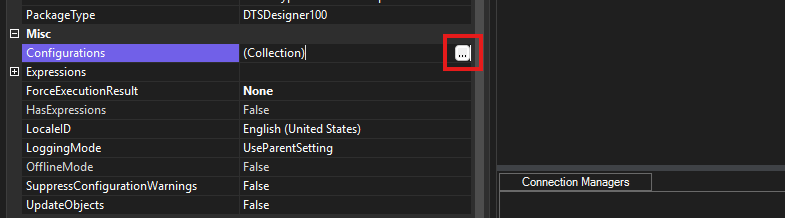
- In your child package right click in the Control Flow work area and select properties. In the package properties click on the
...button next toMisc -> Configurations.
- Click on
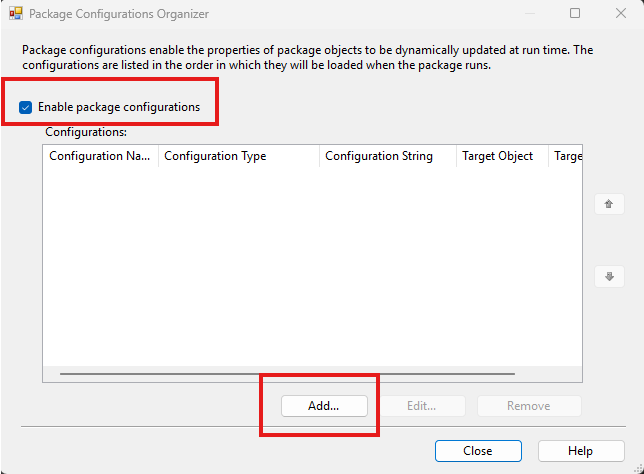
Enable package configurationsand thenAdd.
- Select
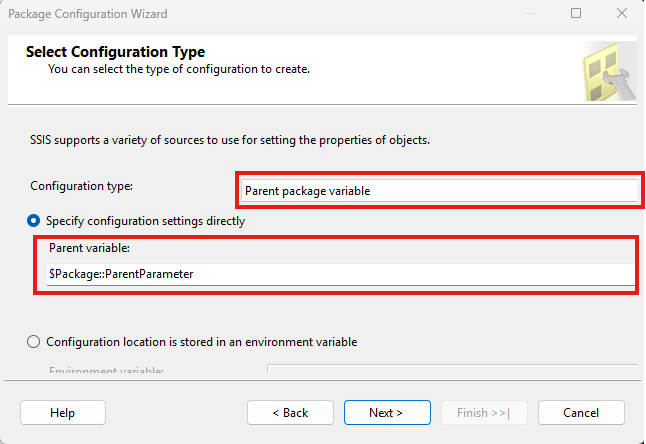
Parent package variablefor Configuration type and enter the fully qualified name of the parent package parameter (or variable).
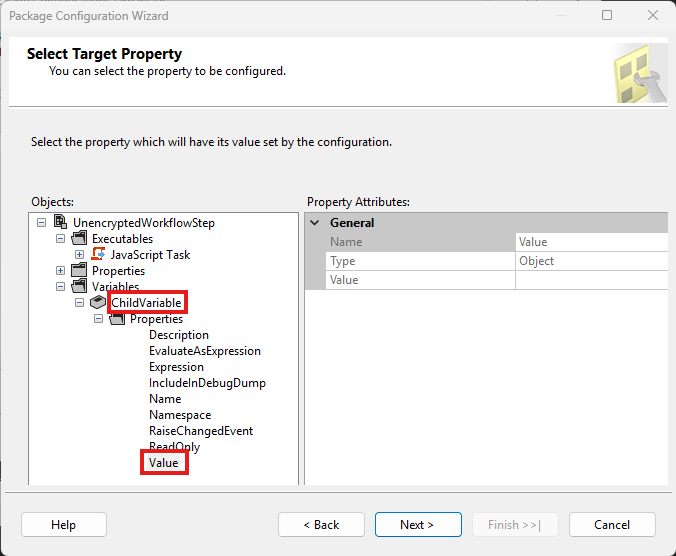
- On the next screen select the
Valueof your child package variable as target property.
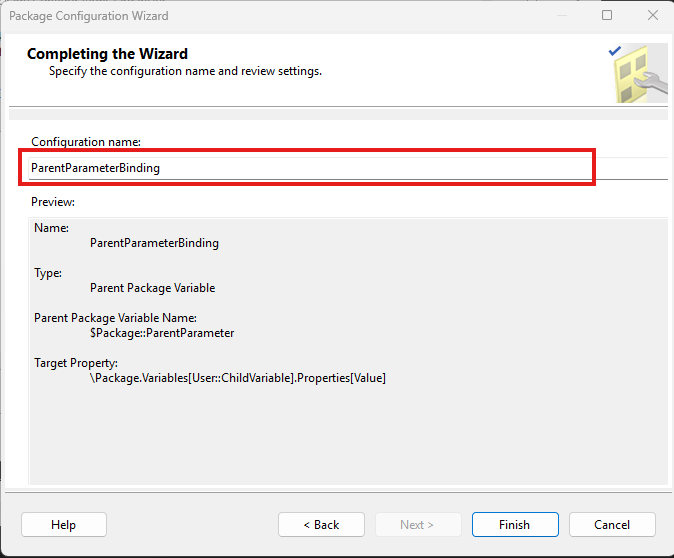
- Give a name to the new configuration and complete the wizard.
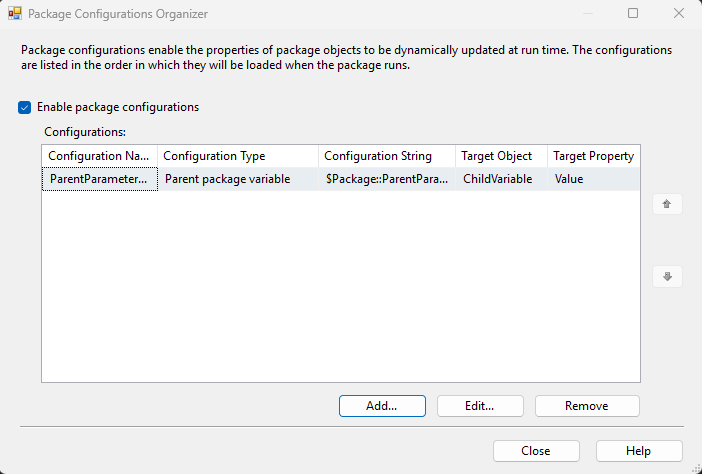
- Review your new configuration and close the Package Configuration Organizer.
- Use the new variable in your child package where it is needed. The value of the variable will be automatically populated during execution.