Accessing TDS Service from DBeaver
info
Available for: Flex (SSIS) and Gems (Pre-built)
Overview
DBeaver can connect to the COZYROC Cloud TDS service using a Microsoft SQL Server (MSSQL) connection.
To establish a connection, you must provide:
- TDS endpoint details
- Your COZYROC credentials
This guide walks you through configuring the connection and accessing your TDS data in DBeaver.
Prerequisites
Before you begin, ensure you have:
- DBeaver installed
- An installed COZYROC datasource gem or package
- Your COZYROC username
- A generated Personal Access Token
- TDS endpoint details:
- Host
- Port
- Database name
Step 1 — Create a New Connection
- Open DBeaver
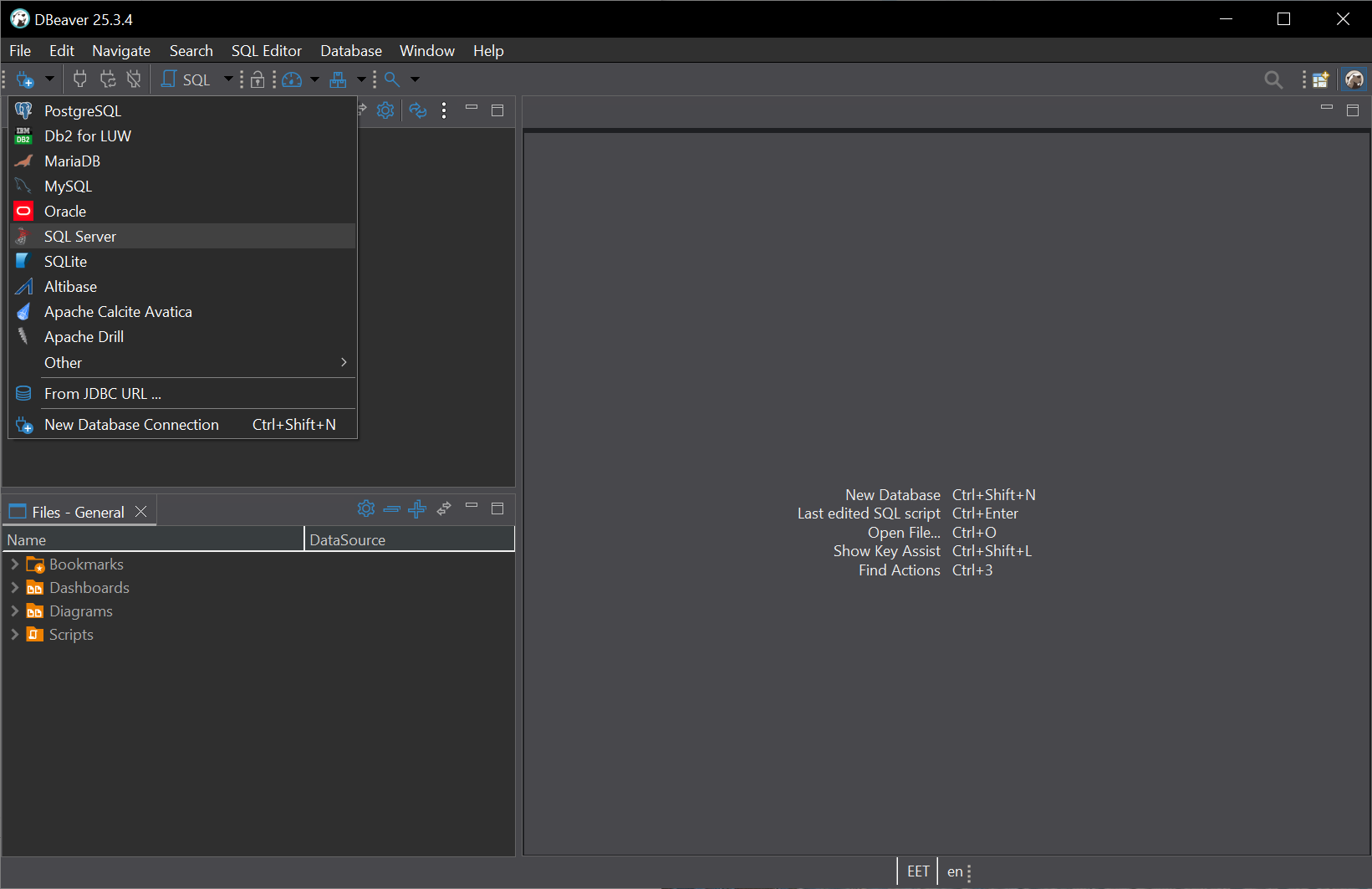
- Click New Database Connection
- (or use
Database → New Database Connection)
- (or use
- In the driver list, select SQL Server
- Click Next
Step 2 — Enter Connection Settings
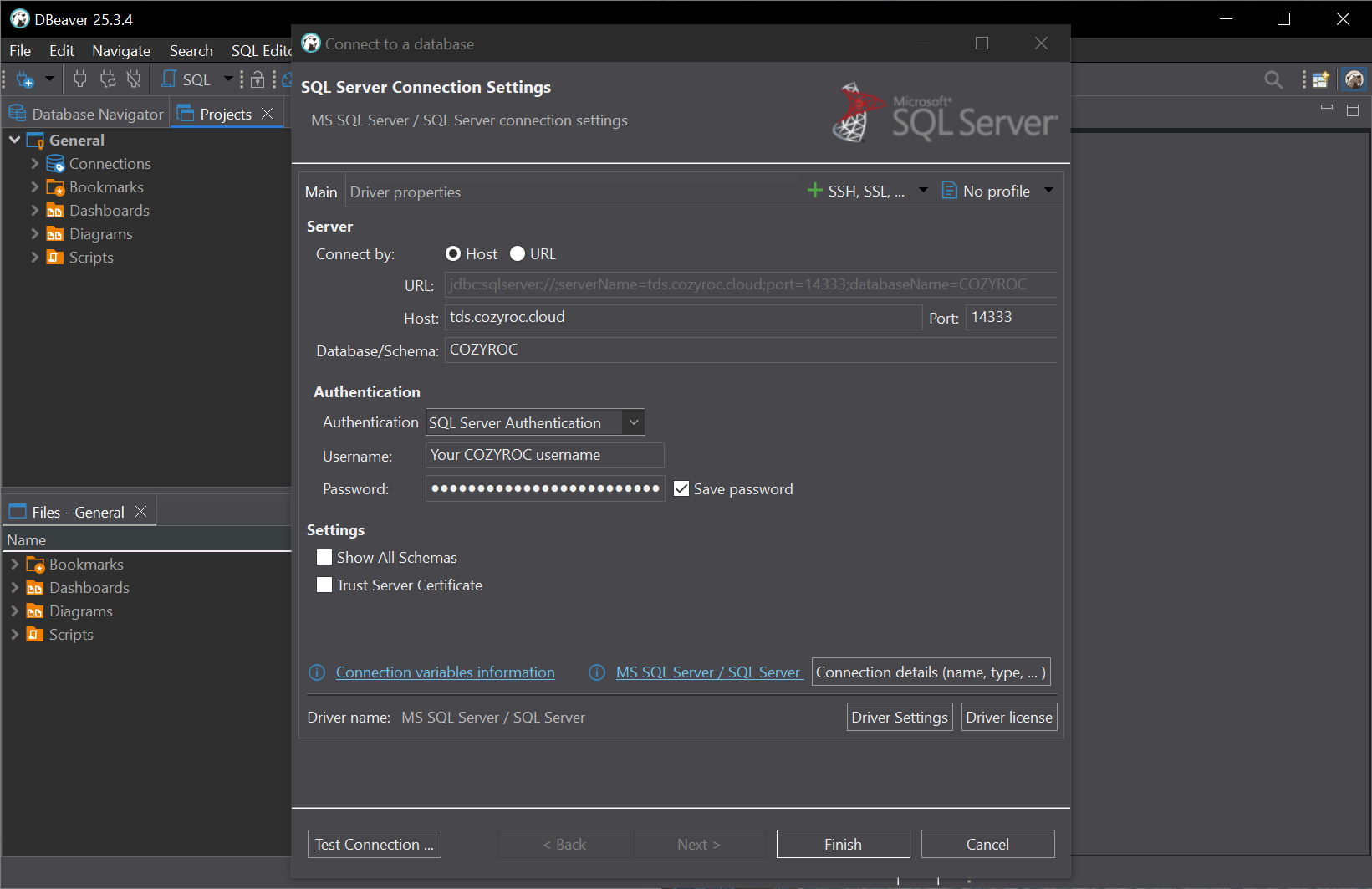
Provide the following:
- Host:
tds.cozyroc.cloud - Port:
14333 - Database:
COZYROC - Authentication: SQL Server Authentication
- Username: Your COZYROC Cloud account email
- Password: Your Personal Access Token generated in COZYROC Cloud
Step 3 — Configure SSL
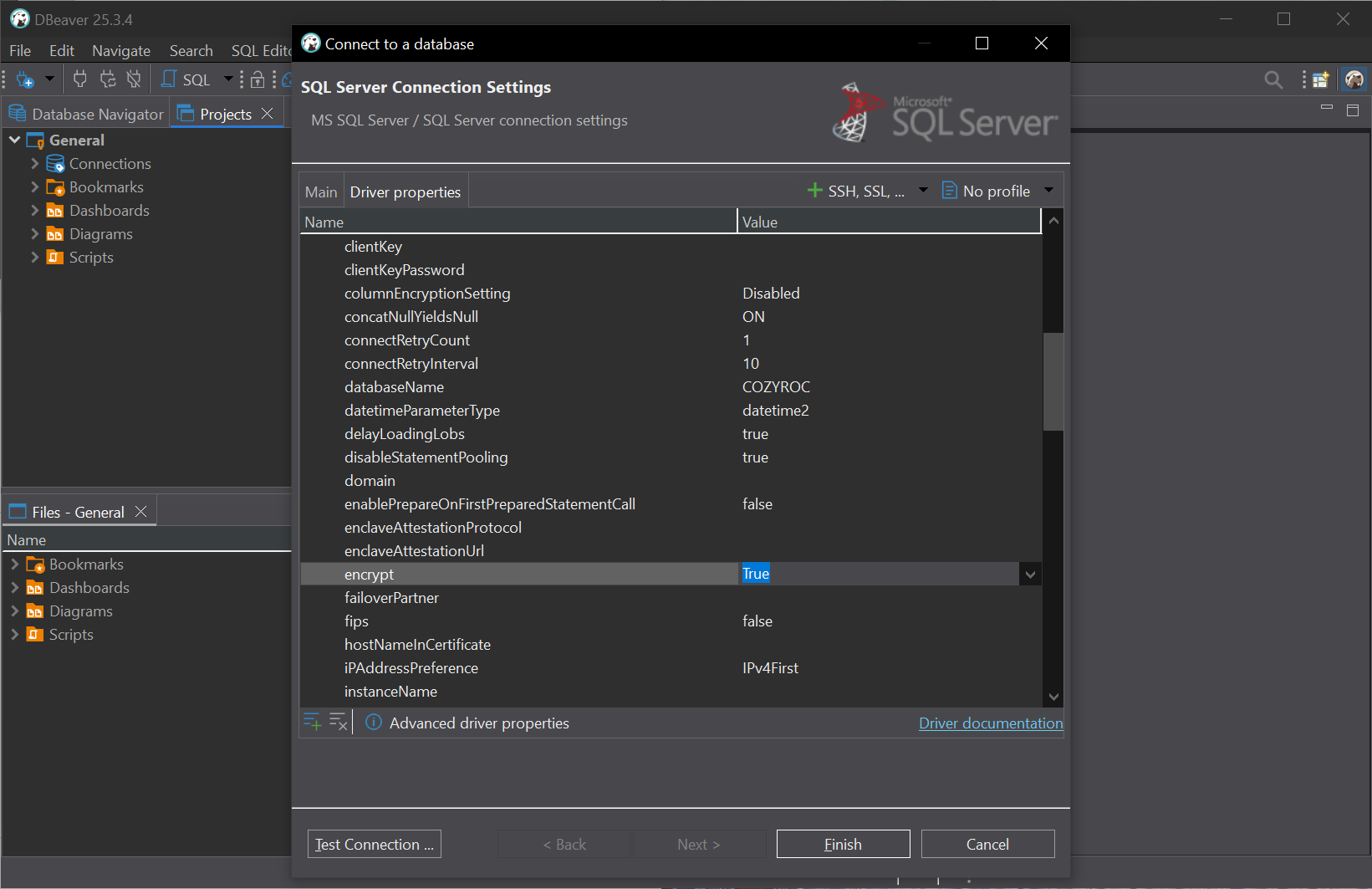
- Open the SSL tab (if available)
- Enable Use SSL
note
SSL is recommended to ensure secure communication with the TDS service.
Step 4 — Test the Connection
- Click Test Connection
- If prompted, allow DBeaver to download the SQL Server driver
- Confirm the test succeeds
- Click Finish
Step 5 — Access Your Data
Once connected:
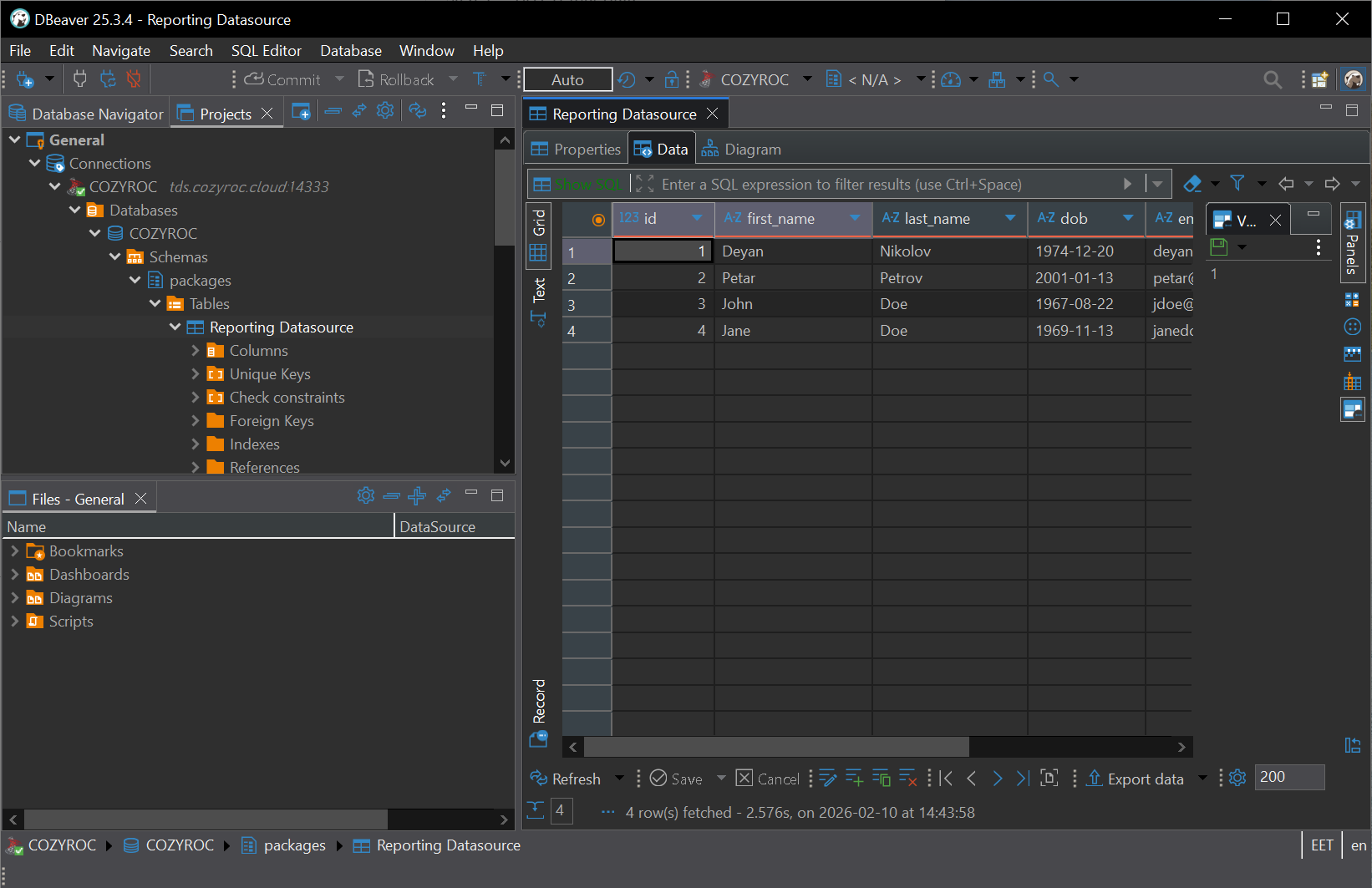
- Expand the connection in the Database Navigator
- Open the COZYROC database
- Browse schemas and tables
- Open a table to preview data or run queries
Troubleshooting Connection Issues
If the connection fails, verify:
- Endpoint and port are correct
- Access token is valid and not expired
- SSL is enabled
- Firewall or IP allow-listing is configured if required
- SQL Server driver is installed in DBeaver
Next Steps
You are now ready to:
- Query TDS data
- Validate datasets
- Use DBeaver for exploration and troubleshooting
- Connect BI tools to the same TDS endpoint