Accessing TDS Service from Tableau
info
Available for: Flex (SSIS) and Gems (Pre-built)
Overview
Tableau can connect to the COZYROC Cloud TDS service using the Microsoft SQL Server (MSSQL) connector.
You can connect in two ways:
- Live Connection — queries data in real time
- Extract Mode — imports and stores data in Tableau for faster analytics
This guide covers:
- Connecting from Tableau Desktop
- Publishing to Tableau Cloud
- Importing and storing TDS data
Prerequisites
Before you begin, ensure you have:
- An installed COZYROC datasource gem or package
- Your COZYROC username
- A generated Personal Access Token
- TDS endpoint details:
- Host
- Port
- Database name
- Tableau Desktop or Tableau Cloud access
Connecting from Tableau Desktop
Step 1 — Open Tableau and Connect to Data
- Launch Tableau Desktop
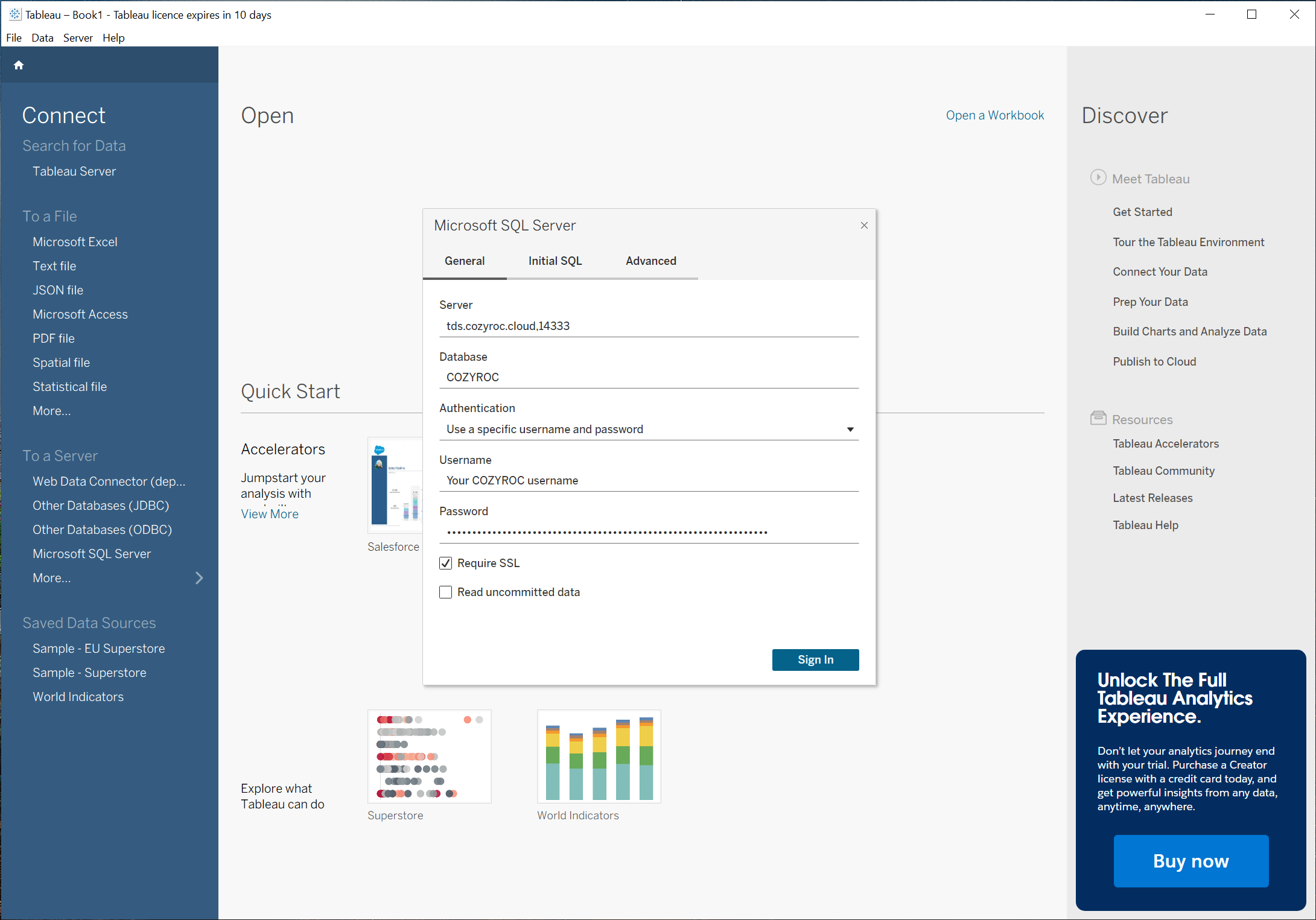
- In the Connect pane, choose Microsoft SQL Server
Step 2 — Enter Connection Details
Provide the following:
- Server:
tds.cozyroc.cloud,14333 - Database:
COZYROC - Authentication: SQL Server Authentication
- Username: Your COZYROC Cloud account email
- Password: Your Personal Access Token generated in COZYROC Cloud
note
Enable SSL encryption if prompted.
Click Sign In.
Step 3 — Select Schema and Table
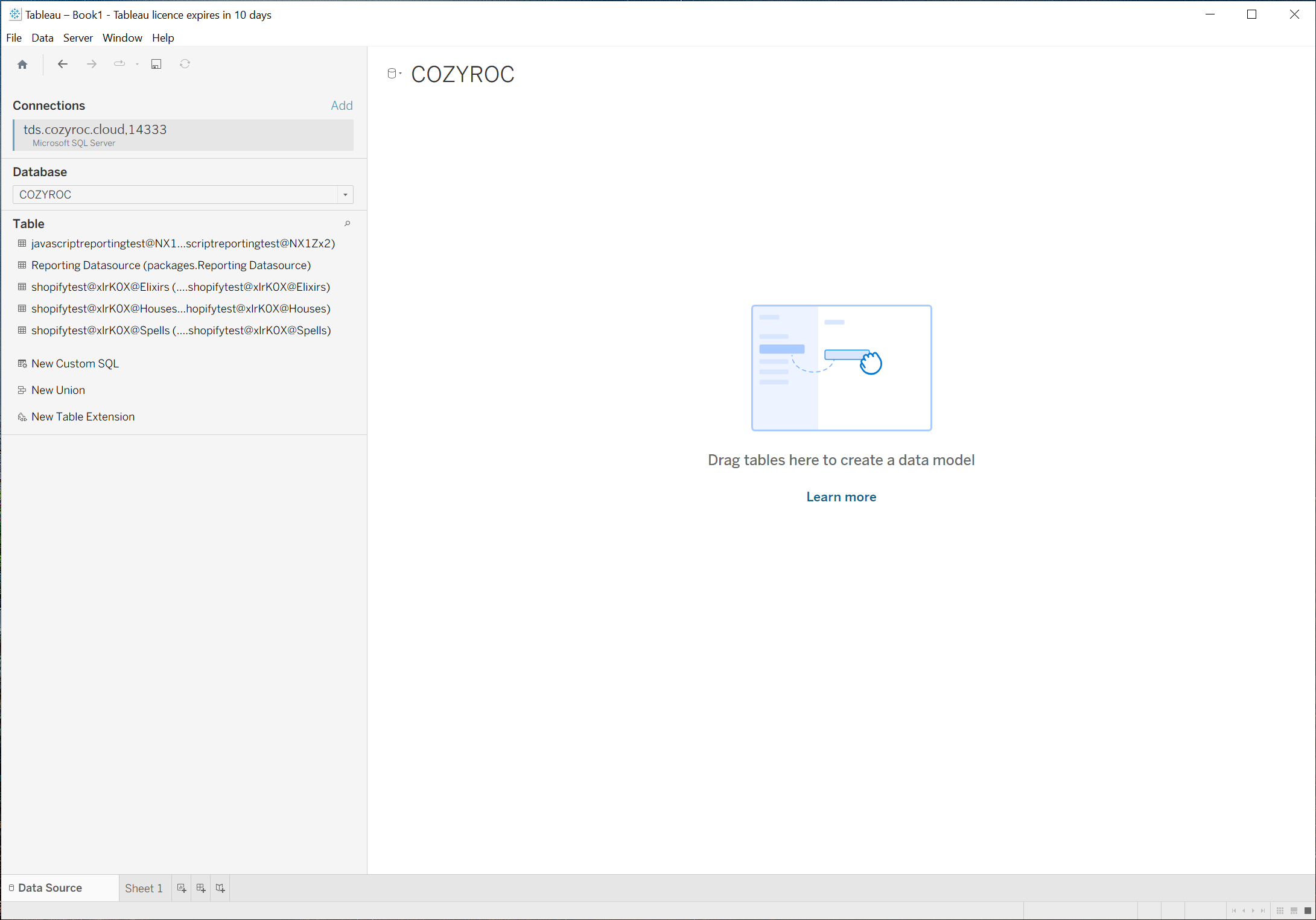
- Choose the appropriate database schema
- Drag your Reporting Datasource table to the canvas
- Tableau will preview the data
Step 4 — Choose Data Mode
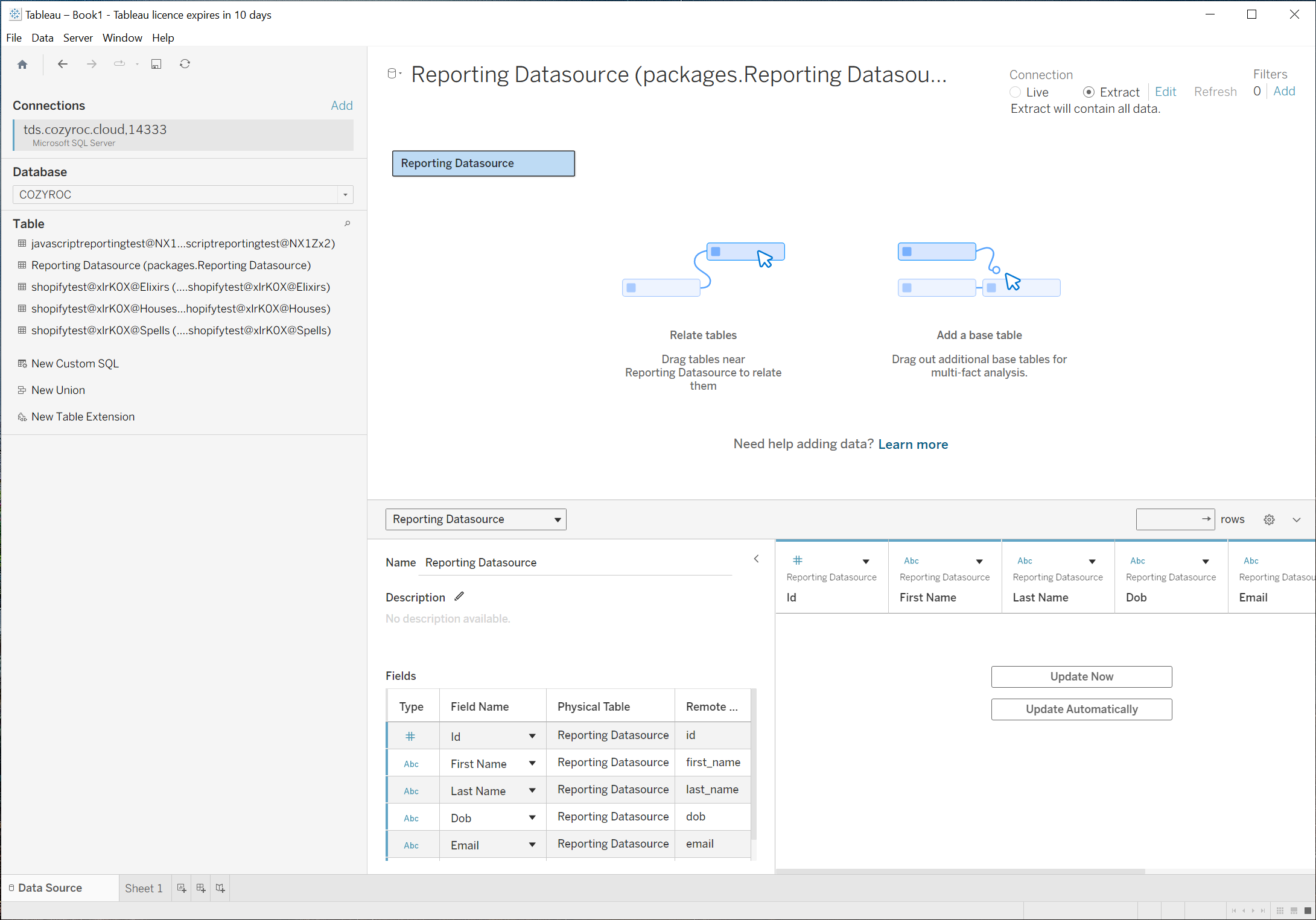
At the top right, select:
Option A: Live Connection
- Queries TDS in real time
- No local storage
- Best for always-current data
Option B: Extract Mode
- Imports and stores data locally
- Faster dashboard performance
- Supports scheduled refresh
Step 5 — Load Data
If using Extract:
- Click Sheet 1
- Tableau will prompt to create the extract
- Confirm to load data
Step 6 — Save or Publish
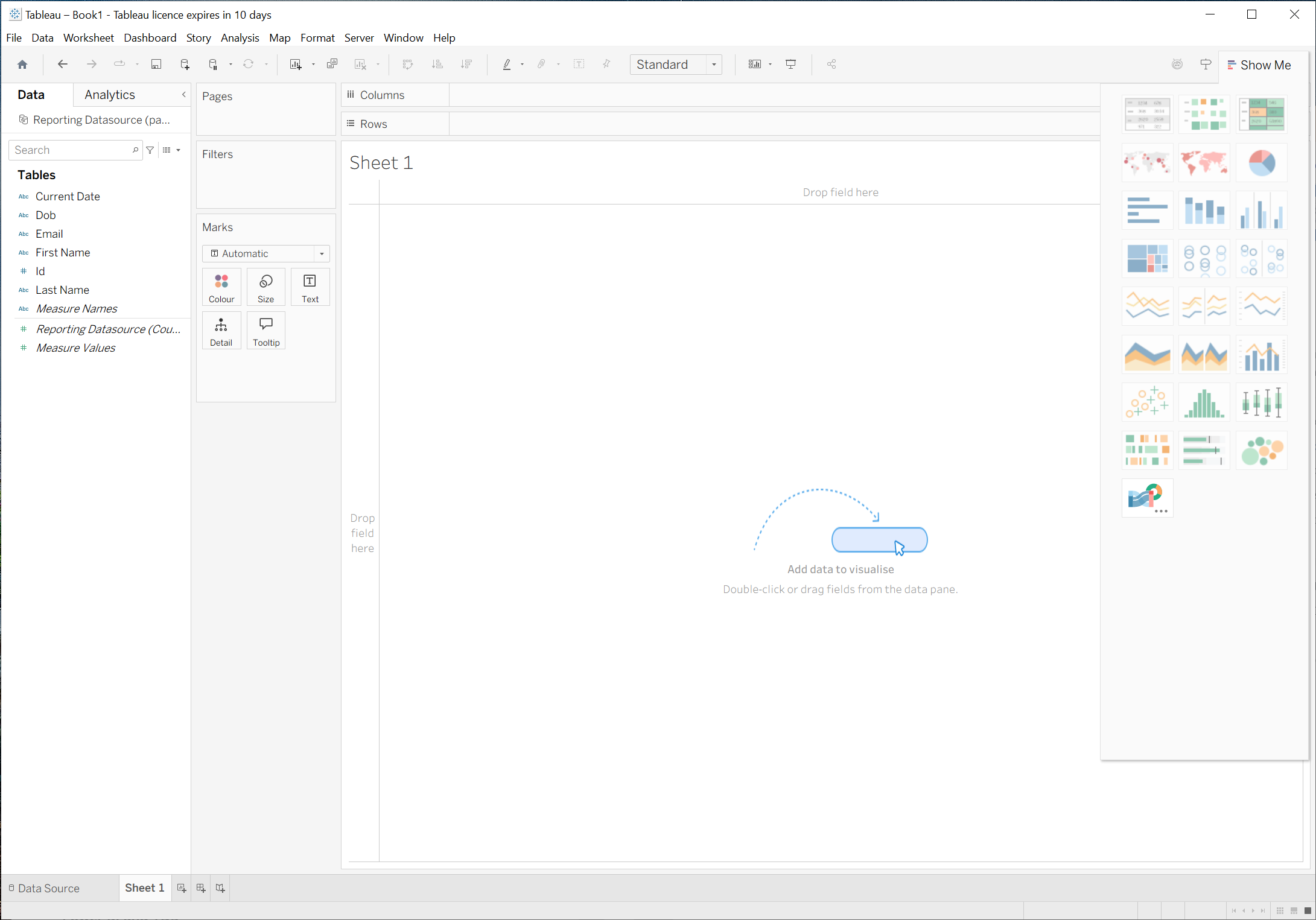
You can now:
- Save locally as a
.twbor.hyperextract - You're all set and can proceed with your Tableau workflow
Using Tableau Cloud Directly (Web Authoring)
Step 1 — Add a New Data Source
- Open your Workbook in Tableau Cloud
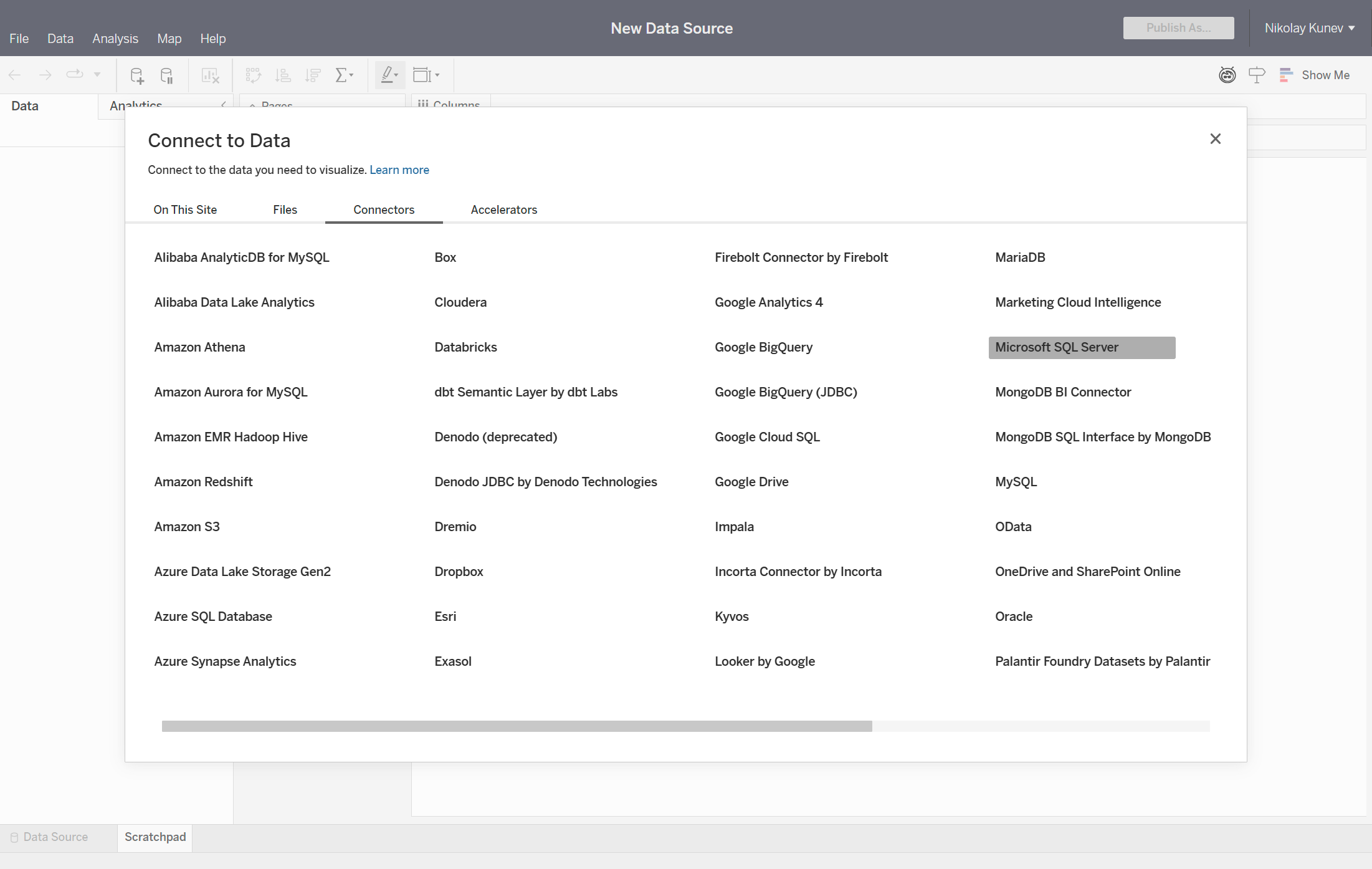
- In the left panel, click New Data Source
- Navigate to the Connectors tab
- Select Microsoft SQL Server
Step 2 — Configure MSSQL Connection
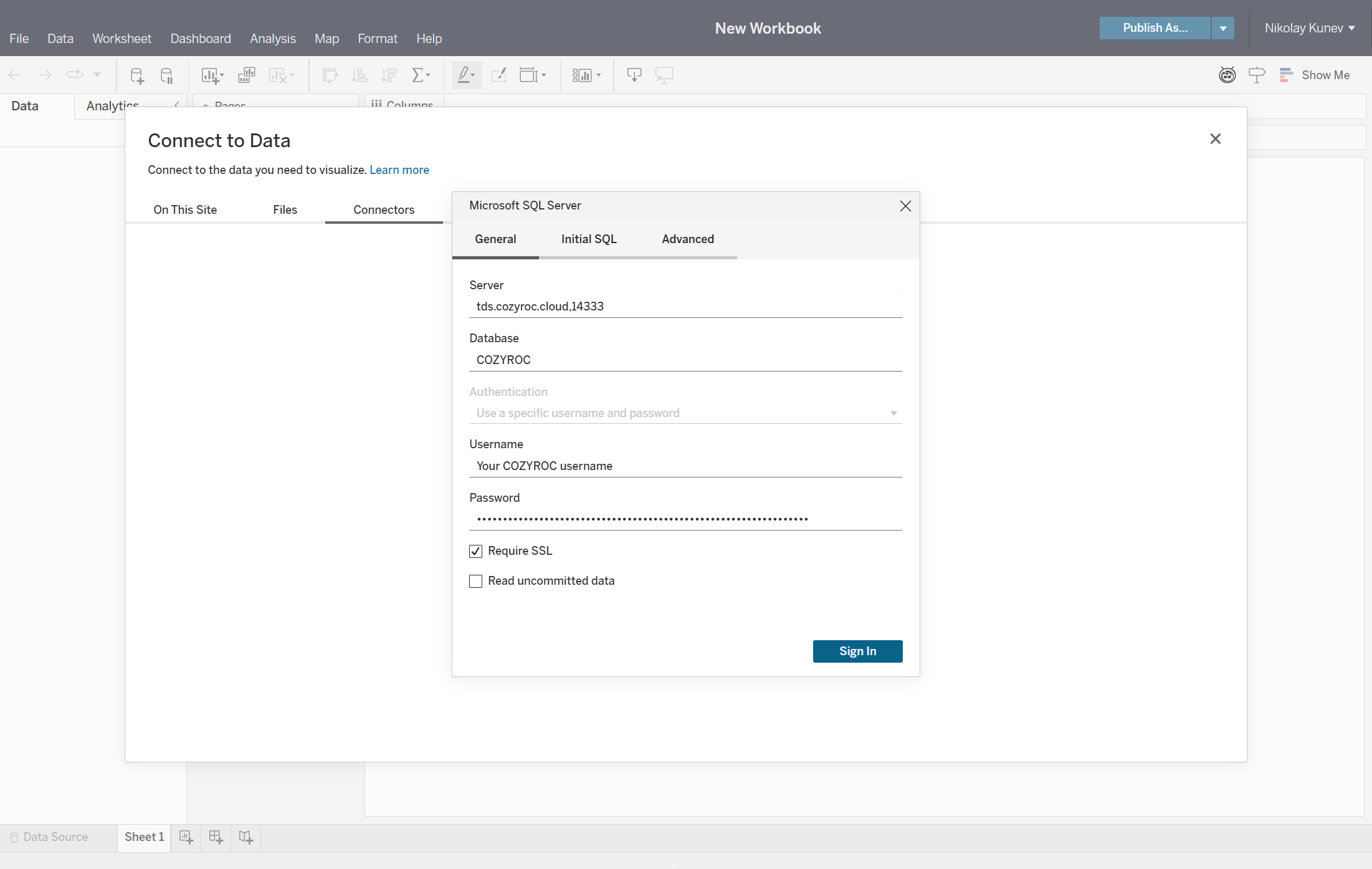
Enter your TDS connection details:
- Server:
tds.cozyroc.cloud,14333 - Database:
COZYROC - Authentication: SQL Server Authentication
- Username: Your COZYROC username
- Password: Your Personal Access Token
note
Enable Require SSL to ensure secure communication with TDS.
Click Sign In.
Step 3 — Select and Load Tables
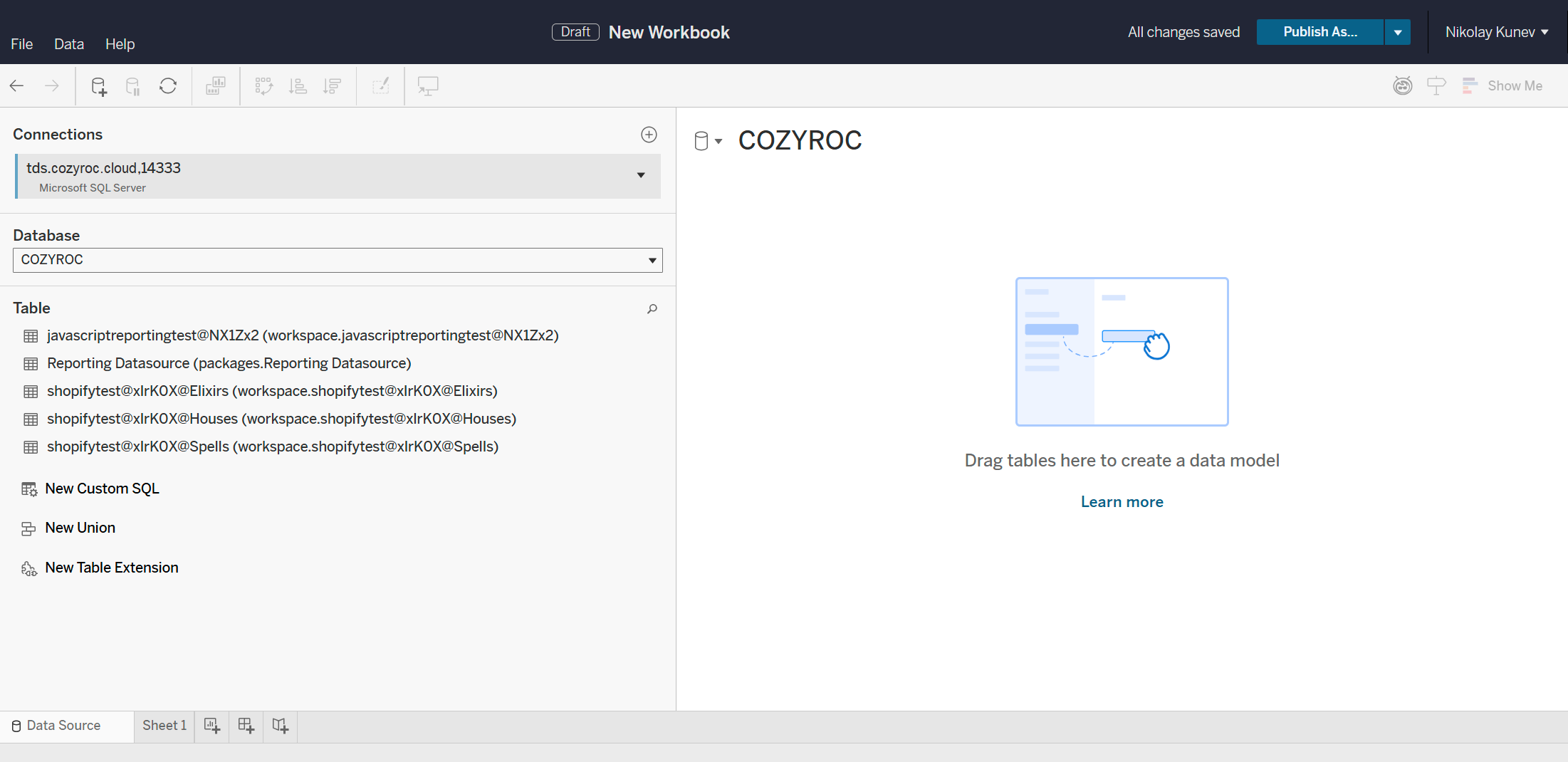
- After connecting, Tableau displays available databases and tables
- Locate your Reporting Datasource table
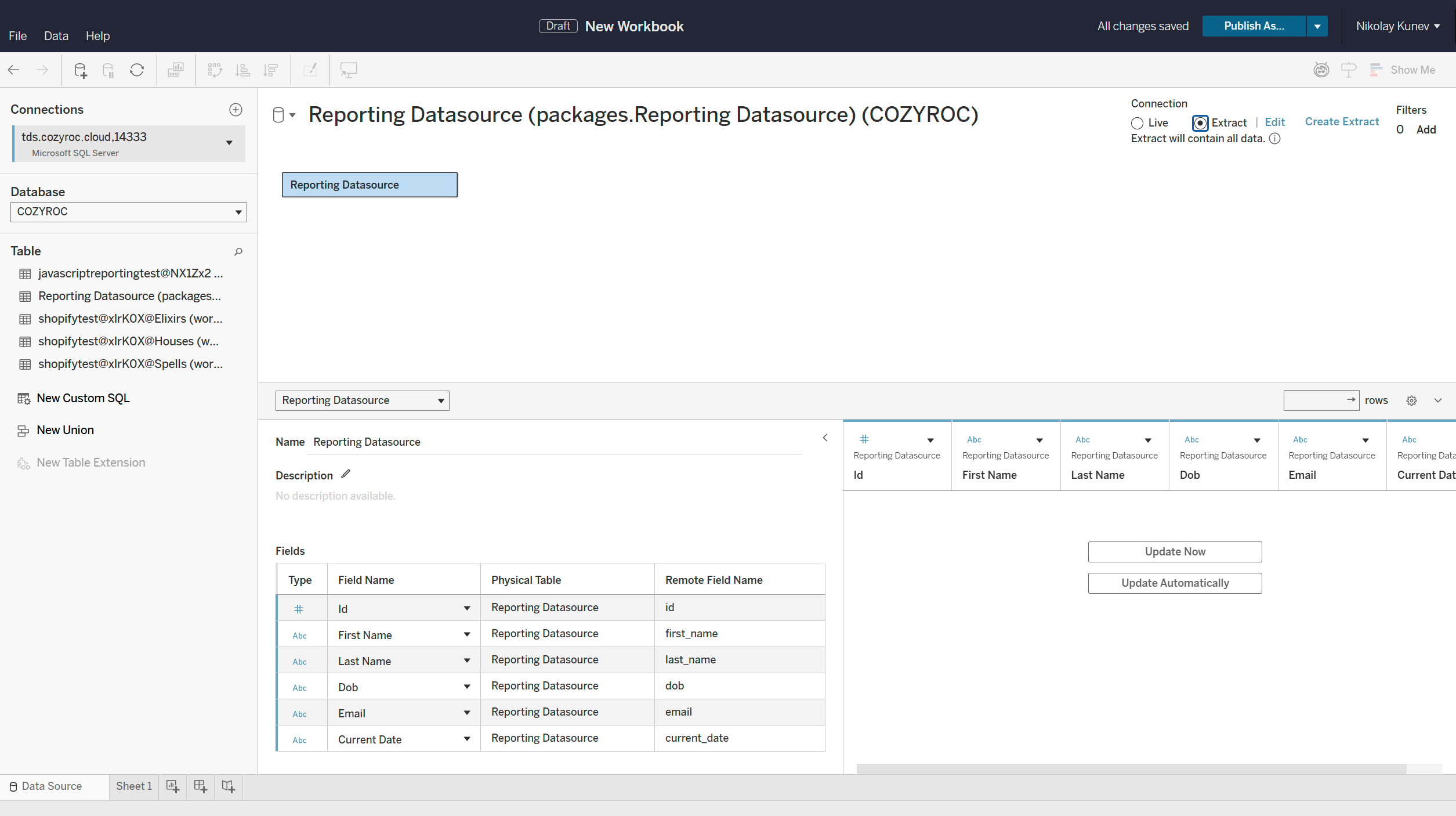
- Drag the desired table onto the canvas
- Tableau will generate a data preview
Step 4 — Continue Your Tableau Workflow
You can now:
- Build worksheets and dashboards
- Create live connections or extracts
- Publish or share your workbook as needed
Troubleshooting Connection Issues
If connection fails, verify:
- Endpoint and port are correct
- Access token is valid and not expired
- Firewall or IP allow-listing
- SSL/encryption enabled
- Tableau version supports your TLS requirements
Next Steps
You are now ready to build dashboards and analytics in Tableau using your COZYROC Cloud TDS data.