Accessing TDS Service in Power BI
info
Available for: Flex (SSIS) and Gems (Pre-built)
Overview
To use the COZYROC Cloud TDS service in Power BI, you need to provide:
- Server
- Username
- Password
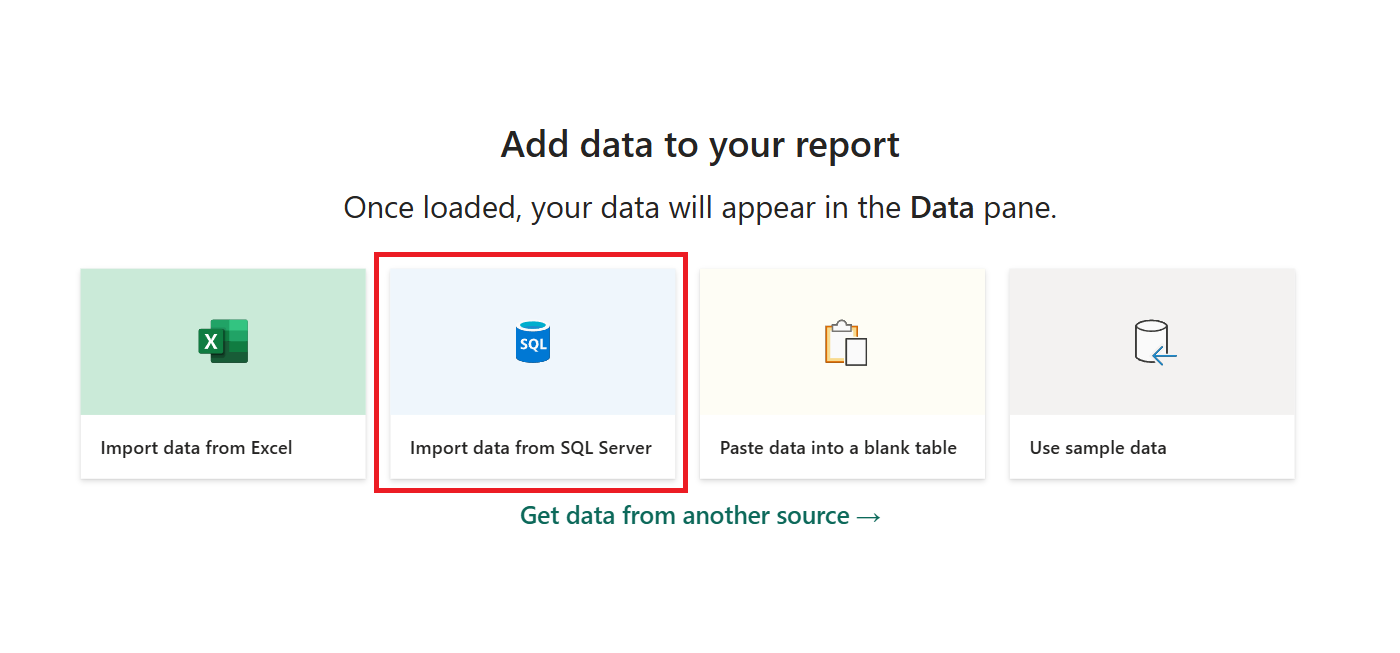
In the Home tab, click Import data from SQL Server and fill in the required fields.
Example 1: Getting the Packages List in Power BI
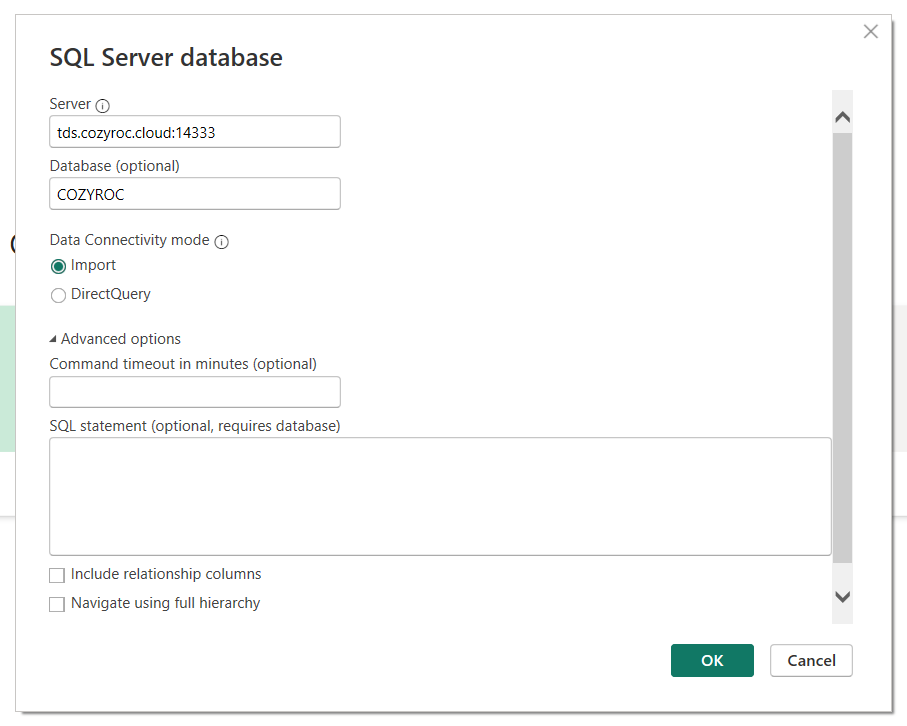
Step 1 — Configure SQL Server Connection
Set up a SQL Server connection in Power BI.
Step 2 — Enter Credentials
Click on Database and enter credentials:
- Username: Your COZYROC Cloud account email
- Password: Your Personal Access Token generated in COZYROC Cloud
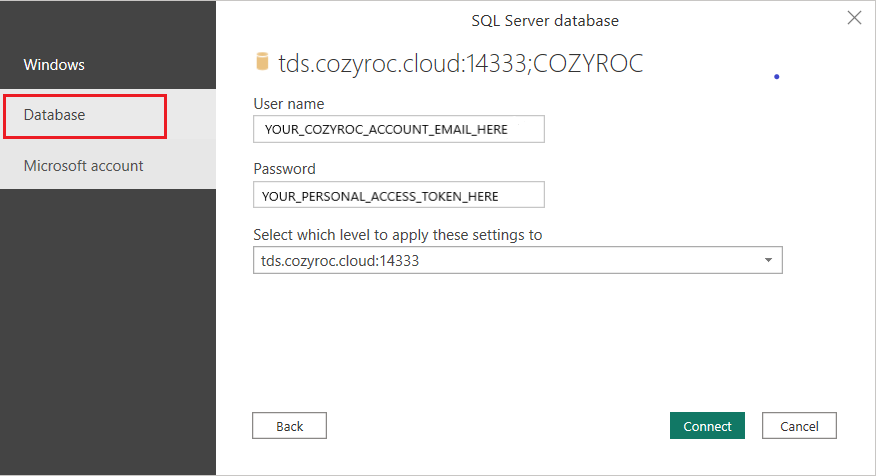
Click Connect.
Result
You should see your packages listed in Power BI navigator
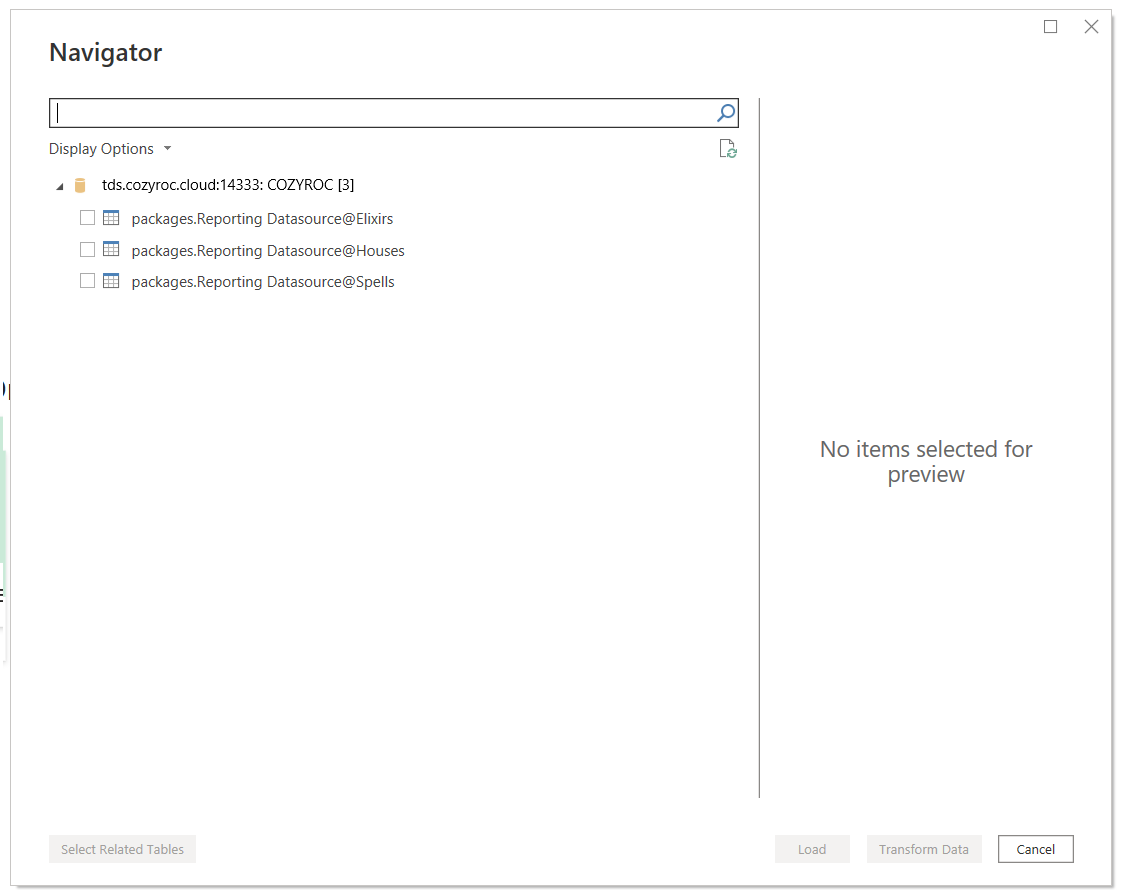
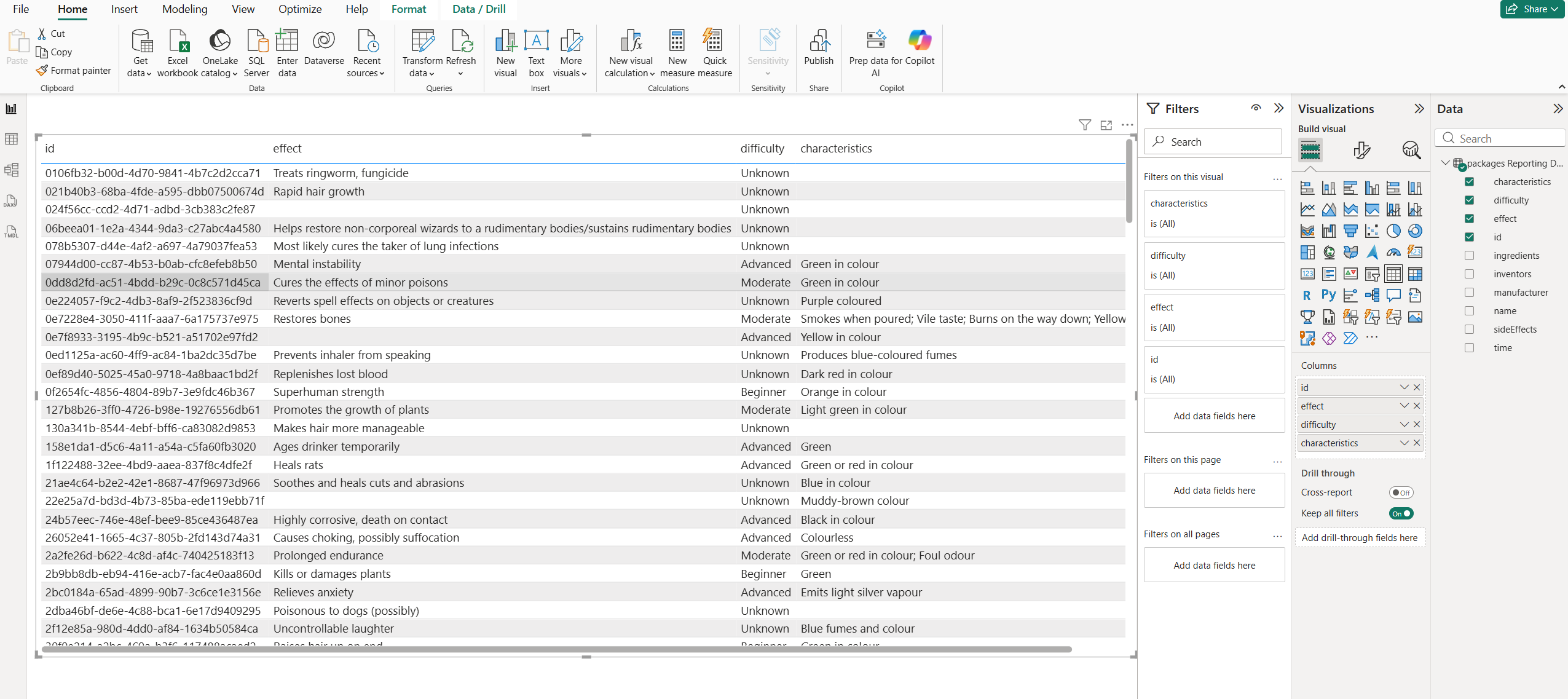
Select a package and click Load to bring the data into Power BI and start building visualizations.
Example 2: Executing a Package in Power BI
Run a package directly from Power BI.
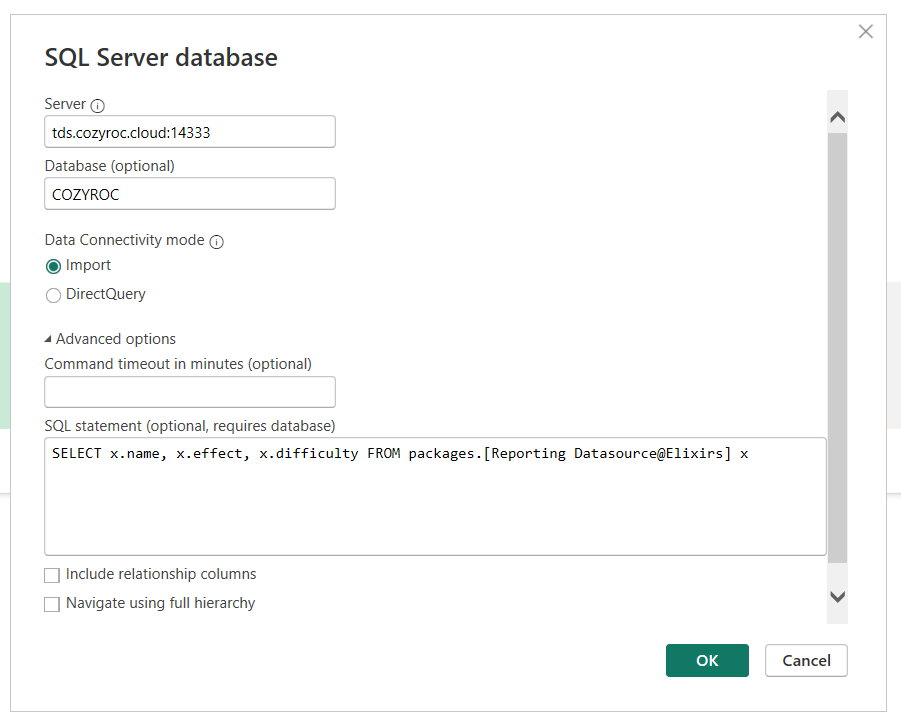
Execution Result
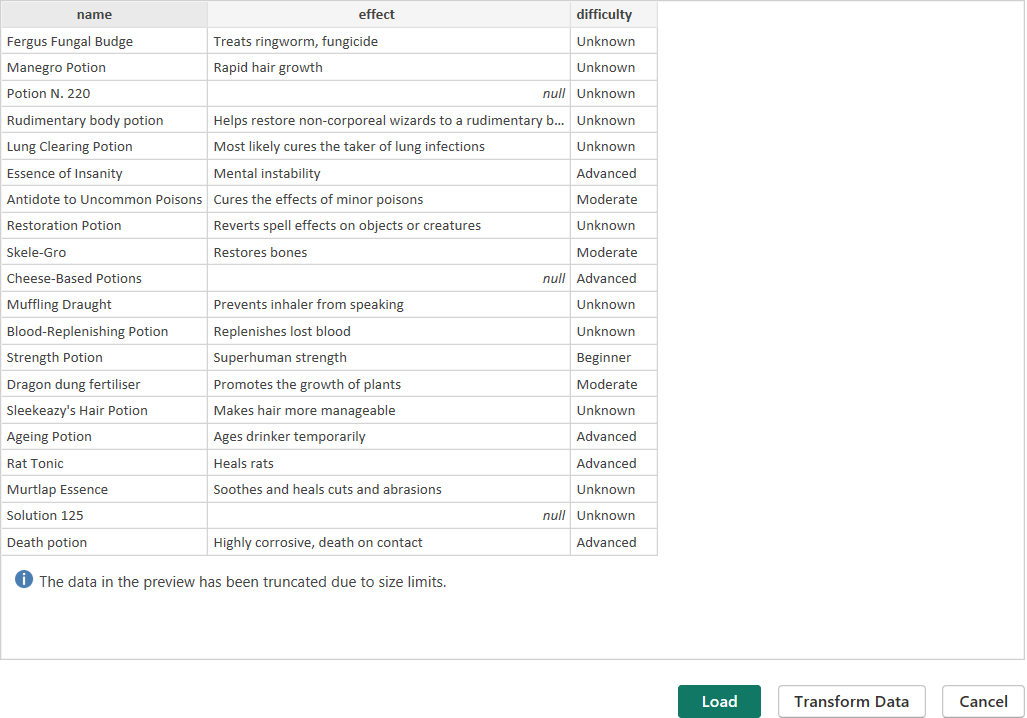
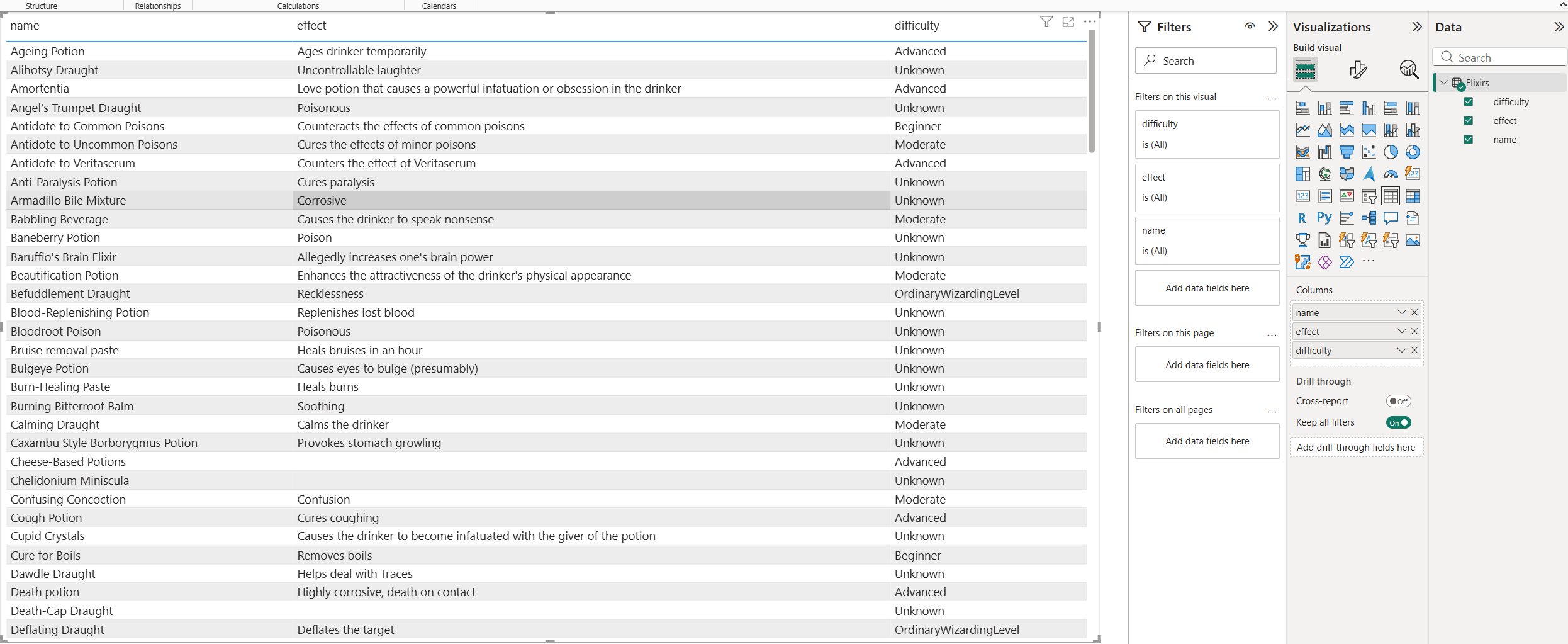
Click Load to load the full dataset.
Tips
- Ensure your Personal Access Token is active
- Verify server details if connection fails
- Use Load to import data for reporting and dashboards
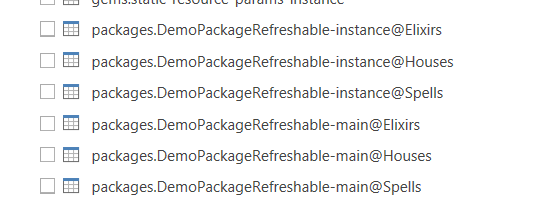
Multiple instances
If you have more instances they will appear in Power BI explorer with their identifier like shown below.